Video courses and online lessons
Use ScreenCam as course video recorder and lesson recording software for lectures, homework explanations, coding walkthroughs, and student feedback with a clear camera presence.
Windows screen recorder with camera overlay and a practical video recorder for courses, online lessons, tutorials, demos, product walkthroughs, lectures, training videos, and quick explainer videos. Record screen and webcam together with voice, system audio, annotations, watermark, MP4 export, hotkeys, and SRT subtitle generation from one lightweight desktop app.
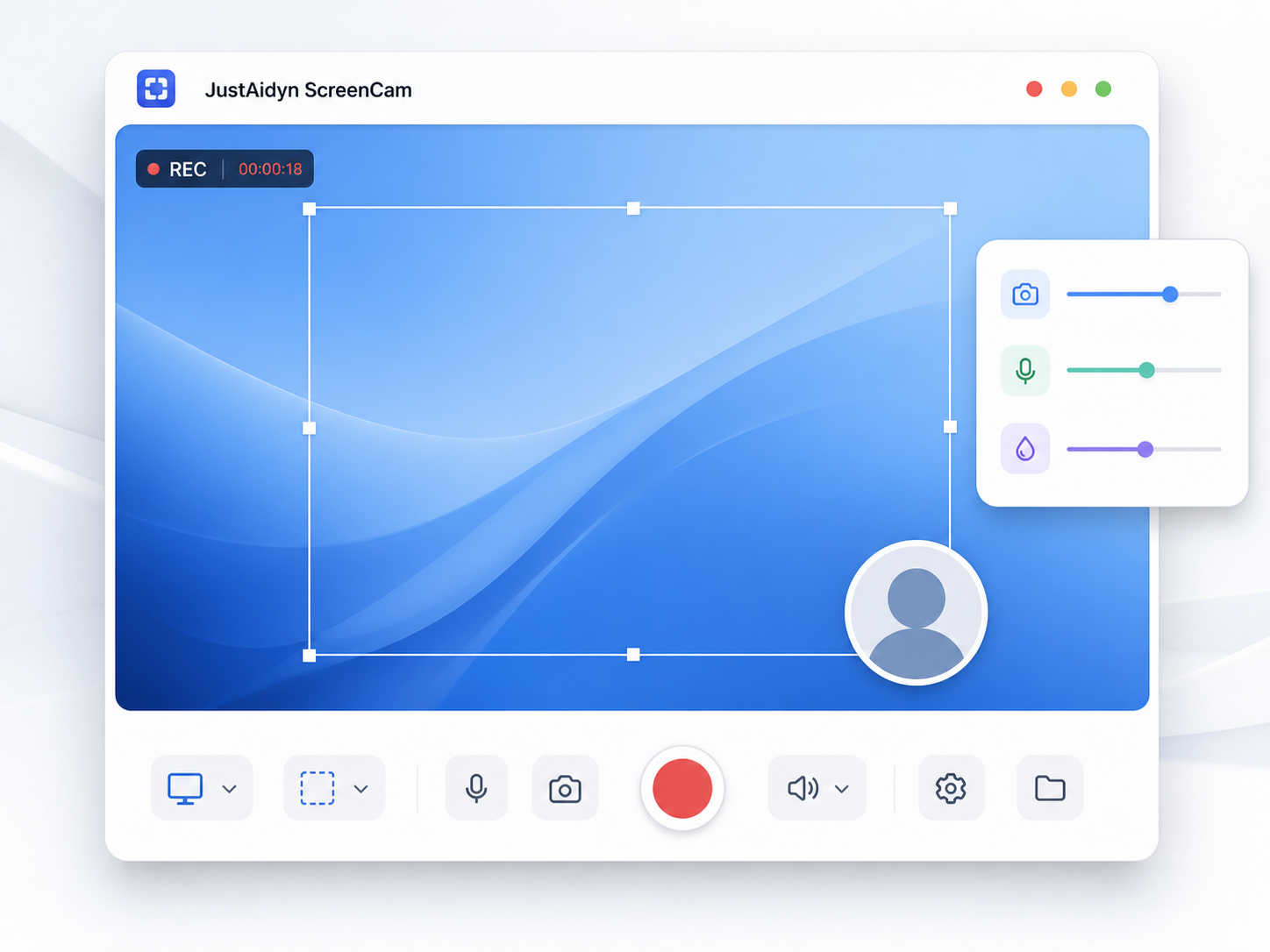
Built for real recording work
ScreenCam keeps the common recording workflow compact: prepare the screen, show yourself when needed, annotate while recording, then save the MP4 video and subtitle file. It fits search needs such as screen recorder, video recorder for courses, lecture recorder, tutorial video recorder, and training video recorder without forcing a heavy editing suite into the workflow.
Use ScreenCam as course video recorder and lesson recording software for lectures, homework explanations, coding walkthroughs, and student feedback with a clear camera presence.
Capture product flows with custom screen regions, pause/resume hotkeys, camera overlay, and watermark controls for branded delivery.
Record tutorial videos, training clips, software walkthroughs, presentation recordings, and short-form content with MP4 files that are easier to reuse across channels.
Create quick internal videos for support, onboarding, bug reports, and async collaboration.
Feature set
Select a capture area, use common presets, record the screen region you need, and save recordings as MP4 files.
Keep a live camera window on top, choose cameras, and rotate between selected devices.
Record microphone and optional computer audio for lessons, calls, and demonstrations.
Use cursor, laser, pen, highlighter, drawing layers, and quick cleanup controls while recording.
Add watermark text, choose one of nine positions, and control opacity in the live preview and output.
Generate an SRT subtitle file automatically after recording stops.
Workflow
Launch the app and sign in before the main screen opens.
Choose cameras, recording region, audio devices, watermark, hotkeys, and save location.
Start the session and keep the live camera preview visible while you work.
Use pointer, laser, pen, and highlighter tools when the explanation needs attention.
Stop recording and save the MP4 output with a generated subtitle file.
Latest update
This build improves logout and desktop session release, keeps login transitions inside the login window, moves status messages to tray notifications, and refines capture-region recording quality.
Logout, app quit, and pre-login cleanup now use bearer-only desktop session release calls.
The login window stays open during logout and sign-in transitions, and browser callback tabs show a clear completion message.
Tray notifications, countdown control states, finalization loading, and capture-region visibility were improved.
Pricing
Start with monthly software access for lessons, demos, or content production. ScreenCam is a digital software product, not consulting, custom development, or advisory service.
Seller: Aidyn Kunikeyev, operating under the JustAidyn brand. Payment checkout is provided through Halyk Bank Epay. The checkout shows the current subscription price, 16% VAT/NDS where applicable, renewal period, and cancellation terms before payment. Digital delivery has no separate delivery cost.
FAQ
These answers help visitors and search engines understand exactly what JustAidyn ScreenCam does.
The best recorder for video courses should capture screen, camera, microphone audio, annotations, and export a reusable video file. JustAidyn ScreenCam is built for this workflow on Windows, especially for lessons, tutorials, demos, and training videos.
Yes. ScreenCam can record the selected screen region while keeping a live camera preview visible, so course creators and teachers can explain material with face-to-camera context.
Yes. ScreenCam is designed as a video recorder for courses, online lessons, lecture recordings, homework explanations, coding walkthroughs, product demos, student feedback, and other educational videos.
Yes. ScreenCam saves recordings as MP4 files, making them easier to upload to course platforms, learning portals, video hosting tools, and social channels.
Yes. After a recording stops, ScreenCam can generate an SRT subtitle file that can be reused with video players, editing software, and publishing workflows.
Yes. JustAidyn ScreenCam is a downloadable Windows desktop app. A Google or Microsoft account is used for sign-in and subscription status checks.
ScreenCam Monthly costs $5.90 per month during the launch discount period. The regular price is planned as $10.90 per month later. VAT/NDS is charged separately at 16% where applicable and digital delivery has no separate delivery cost.
Yes. It records a selected screen region and keeps a webcam preview available for lessons, demos, tutorial videos, and training content where viewers need to see both the screen and presenter.
JustAidyn ScreenCam is sold by Aidyn Kunikeyev under the JustAidyn brand. Product support is available by email, WhatsApp, and Telegram, and the Terms, Privacy Policy, Subscription Terms, and Refund Policy are linked on this page.
Contact
Seller and product support: Aidyn Kunikeyev, aidyn.daulet@gmail.com. Use the channel that fits the question. For account and subscription issues, include the email used for sign-in so support can find the correct JustAidyn profile.
JustAidyn ScreenCam
Download the Windows installer and use ScreenCam for your next tutorial, lesson, demo, or support video.